Residents
Everyone who lives in your community, and how new people get in.
The directory
People > Residents lists everyone who lives in the community, one row per person, with their unit, where they stand with the portal, whether an emergency contact is on file, and how many vehicles and pets they have. Search by name, email, unit, phone or plate, or narrow the list with Not joined, No emergency contact, Has vehicles or Has pets. Each chip shows how many people it matches. Admins who live here are marked Admin, and staff who also live here are marked Staff.
The Portal column is one of:
- Active: they have a CivicPort account.
- Not joined: the office has records for them (an invite, a vehicle, a lease) under an email that hasn't accepted an invitation yet.
- No account: a resident kept without any email. See Residents without email.
Your community's staff are left off unless they also live here, since staff are exempt from the household registry. That is decided per community: someone who works at one community and lives at another still appears on the second one's list.
Adding a resident
Add resident on the Residents page takes a name, unit, phone, role
(leaseholder, co-tenant, occupant or minor), move-in date, an optional resident
or tenant ID, and an email. To file a child under the adult in their unit rather
than as a resident of their own, use the import
with the role minor. With Send a portal invite ticked, saving sends
the tracked invitation straight away; the records you add to
their profile afterwards wait for them and appear in their My Household when
they accept. Untick it to keep the details on file without inviting yet.
To add many at once, use Import from Excel: one workbook carries residents, vehicles, pets and emergency contacts together.
Residents without email
Some communities, housing authorities among them, need to track residents who will never use the portal: the office still has to know whose car is in space 12 and which unit the dog belongs to.
This needs Residents without email turned on for your community, which you ask CivicPort for. Most communities do not need it, and without it every resident needs an email address and receives an invitation.
Once it is on, the email in Add resident becomes optional, and you can leave emails blank in an import. A resident saved without one is kept as a record only:
- They show as No account on the Residents page and their profile carries a banner saying so. Their phone and resident ID appear where the email would.
- You can track everything the office keeps: vehicles (plates, permits, insurance, uploads), pets, emergency contacts and leases. It all counts in the Household Registry and its exports.
- You can assign them a fee (they appear in the Assign members list marked No account) and record what they pay by check, cash or money order with Record payment on Finance > Payments. They show on the outstanding-balances list like anyone else. Fees for everyone cover accounts only; a resident without one is charged by assignment.
- You can file a ticket for them: Report an Issue has On behalf of a resident for admins, and the ticket is theirs, with you named as the filer.
- Nothing is ever sent to them: no announcements, payment reminders, collection notices, ticket updates or the emails other residents get when the office changes their records.
- Add email and invite on their profile turns them into an ordinary resident. Everything on file moves to that address and the tracked invite goes out; when they accept, it is all in their My Household. If the address already has an account here, the records simply move to it.
- Remove resident deletes the record and everything on file for them. See Removing people. It can't be undone.
Turning this off again later leaves the residents already on file exactly as they are. It only stops you adding new ones without an email address.
Getting people in
Two mechanisms, and they are not interchangeable.
The join code
A short code identifying your community. Anyone holding it can register into the community, and it does not know who they are or where they live.
Right for: opening a community to everyone at once, a notice on a board, a welcome packet.
Wrong for: anywhere it matters who gets in, or where you need people landing at specific units.
Email invitations
Addressed to one person, good once, and tracked. Invite residents, at the top of the Residents page, shows the join code and takes up to 20 addresses at a time, plus an optional note and an optional unit, address and move-in date that apply to everyone in that batch.
Each person gets their own link. It works once, only for the email it was sent to, and expires after 14 days. Their CivicPort account is created when they accept, not when you send, so until then they are not in the directory: they are on the Invites tab.
Right for: apartment communities, controlled HOAs, anyone moving into a specific unit, and any community that runs applications.
The Invites tab
Everyone you have invited and where they stand. The tab label shows how many are still pending.
| Status | Means | What you can do |
|---|---|---|
| Pending | Sent, not accepted yet. "Opened, not accepted" if they clicked the link and stopped | Resend, Revoke |
| Accepted | They set a password and joined. Shows the date | Nothing to do |
| Expired | 14 days passed without an answer | Send again |
| Revoked | You cancelled it, or the email could not be delivered | Send again |
Resend and Send again both issue a fresh 14-day link and cancel the old one, so there is never more than one live link per person.
Filter by status, or search by email or unit.
The move-in checklist and applications
These are two separate switches for your community, and an invitation follows both:
- The move-in checklist. Where your community runs one, everyone you invite is enrolled in it when you send, so their checklist is waiting the first time they sign in. HOAs use this for new owners as much as rental communities do for new tenants.
- Applications (member onboarding). Where your community screens new residents, Ask them to fill out a rental application appears in the invite. With it ticked, the link opens the application and creates the account from the same submit, so the applicant tells you something before they have an account rather than after. Most HOAs leave applications off; their applications happen outside CivicPort.
Without either, the link asks for a name and a password, and the resident lands on their dashboard.
Switching either off does not cancel links already sent. Revoke any you no longer want used.
The Invites tab sits next to the directory on the Residents page, and only
admins see it. It is addressable by URL (?tab=invites), so links and the
command palette can land on it directly.
Resident profiles
Click a resident's name in the directory, on the Staff page or in the Household Registry, for everything the office keeps about them:
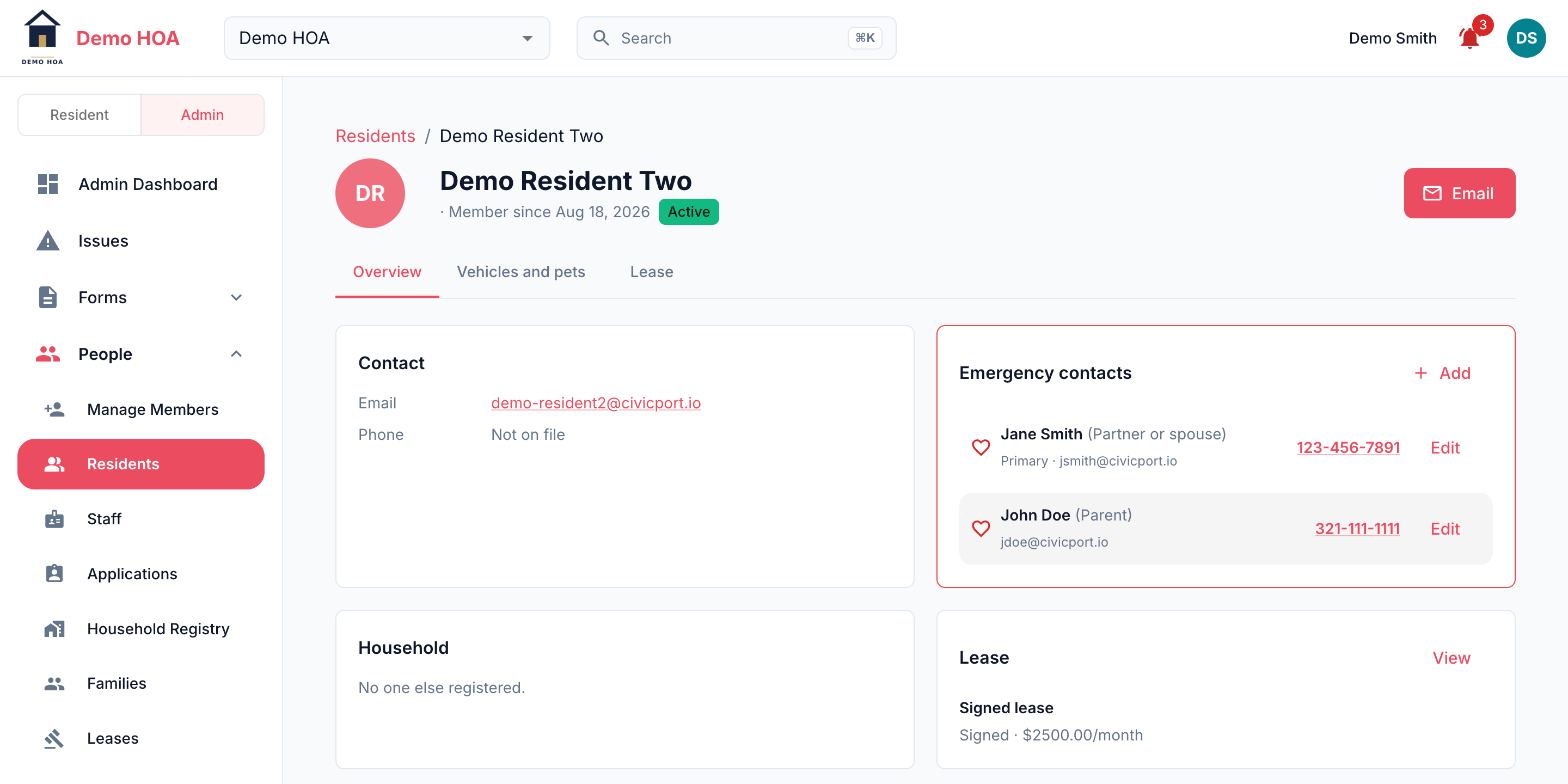 The Overview tab: contact details, emergency contacts, household and the latest lease.
- Overview: contact details, emergency contacts (shown in full, with the phone number one tap away), the people in their household, their latest lease, and their vehicles and pets at a glance.
- Vehicles and pets: full vehicle details, masked numbers with a logged reveal, and add or edit.
- Lease: every lease they're on, including ones they co-sign, with upload, link and send. See Leases.
Contact details come from the resident's profile even where they've hidden them from the neighbours directory: that setting is about other residents, not the office. A resident kept without an email has no profile of their own; the office's details for them (phone, unit, role, ID, language, notes) are what the page shows, with Edit to change them.
On the mobile app, admins find the same on the Residents tab: search by name, unit or plate, and call an emergency contact straight from the profile.
Making a resident an admin
Board members, treasurers and volunteers who help run the community usually live in it. To give one of them admin access, open their profile: the Community access card on the Overview tab says whether they are an admin, and Make admin gives them access.
They stay a resident. Their household, payments and votes are unchanged, they show on the Staff page as an admin marked with their unit, and they get the resident / admin switch to move between their home and the admin tools. No staff record is made for them.
Remove admin on the same card takes the access away again. You can't change your own access from here, and CivicPort won't take away a community's last admin: make someone else an admin first. Promote at least one other person anyway. A community with exactly one admin has a single point of failure that is a person.
The card appears once the resident has joined; an invitation that hasn't been accepted has no account to make an admin.
Removing people
Removing someone ends their access to this community. It does not delete their CivicPort account, which may belong to another community, and it does not delete the community's records of them: their payment history, violations and issues are the community's records.
Removing a resident
Remove resident takes someone off the roster for good. It is on the Residents page at the end of their row, and on their profile under Vehicles and pets. Type REMOVE to confirm. It works for all three kinds of resident:
| Kind | What removing does |
|---|---|
| Active | Ends their access to this community and deletes their household records. If this community was the only one their account belonged to, the account is deleted as well |
| Not joined | Deletes their household records and revokes the invitation they never accepted, so the link stops working |
| No account | Deletes the record and everything on file for it |
What comes off is everything that says they live here: vehicles, plates, permits and insurance, pets, emergency contacts, the people on their lease, their unit, and any outstanding invitation.
What stays is everything that happened while they lived here: issues they reported, board posts and messages, bookings, fees, payments and violations. Those are the community's record, and a paid invoice with no payer on it helps nobody. Invite the same address again later and their history lines back up.
Two people cannot be removed this way:
- A community admin. Take their admin access away first (Community access on their profile, or the Staff page), then remove them.
- Staff. Anyone on the community's staff is not on the household registry at all. Take them off the staff list instead.
Removing a resident cannot be undone. The records are deleted, not archived.